Quick answer
A slow or 0 W input reading is an observation, not a diagnosis. First stop for swelling, leakage, smoke, unusual heat, odor, odd noises, moisture, visible damage or a safety alert. If the station is intact and dry, identify the exact model and charging source, record input, output, battery level, mode and messages, then check only the external, manufacturer-approved setup. Make one controlled observation using the exact manual. Input varies by source, model, settings and conditions; if it remains low or zero, or an alert returns, stop repeated tests and contact the manufacturer.
- “0 W” on a display does not identify the cause. It can reflect the source, port, cable, mode, protection state, load or a reading that has not updated.
- Check AC, solar, car/DC and USB-C separately against the exact model manual; connector fit or a familiar-looking charger is not proof of compatibility.
- Do not charge damaged, wet, swollen or unusually hot equipment, and never open the case, probe ports, bypass protection or improvise wiring.
Quick answer: what does 0 W input mean?
A portable power station that shows 0 W input may not be receiving energy at that moment, or the display may be reflecting a source, setting, protection state or operating condition that needs the exact model’s explanation. A low number can likewise be expected in some conditions or indicate a problem. The display is an observation, not a diagnosis.
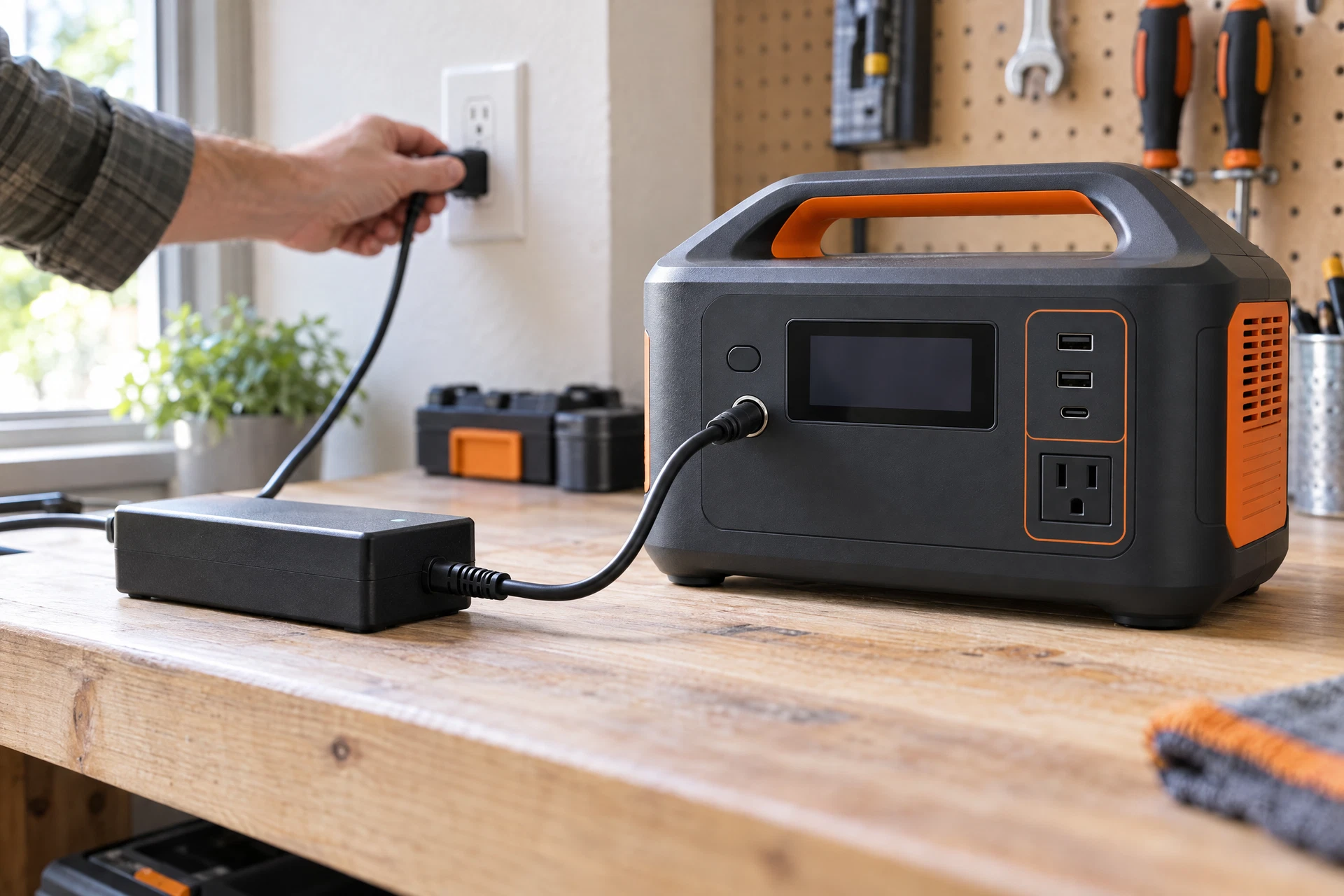
Start with safety, then record the station’s model, battery percentage, input and output readings, connected loads, charging mode, source and any warning. Check the documented AC, solar, vehicle/DC or USB-C path you are actually using. Confirm the source, port and cable are approved for that model; do not substitute an adapter just because its connector fits. If one careful check does not restore documented input, stop experimenting and ask the manufacturer.
Start with a safety stop
Before reconnecting anything, look at the accessible case, charging port, source and cable without opening or probing the station. Stop charging and stop using it if there is a change in shape, swelling, leakage, smoke, unusual heat, an unusual odor, odd noises, water or other visible damage. A warning or temperature alert also changes the order: follow the exact manual and let the manufacturer direct the next step.
The U.S. Fire Administration advises following product instructions and stopping use of lithium-ion batteries for signs such as odor, too much heat, shape change, leaking or odd noises. Do not keep reconnecting a questionable charger “just to see,” put a damaged battery in household trash, force a reset or try to cool or heat the station with water, ice, a heater or a hot vehicle. For smoke, fire or immediate danger, leave the area and call local emergency services.
Identify the source and exact model
Write down the model and revision printed on the station before interpreting a number. Then identify the active input path:
- AC: wall power and the manufacturer’s documented charging cable or adapter.
- Solar: panel, solar cable and input port, with sunlight and panel conditions changing during the observation.
- Vehicle or DC: the approved vehicle socket, DC cable or other documented DC method.
- USB-C: only when the exact manual says that port accepts charging input; connector shape alone does not show charging direction.
Capture the battery percentage, input watts, output watts, charging icon, app mode, upper charge limit and any message. Rates vary by source, model, state of charge, temperature, settings, cable and connected loads. There is no universal “normal” wattage or charging time to use as a pass/fail threshold.
Match the symptom to the next check
| What you observe | Safe next check | Escalate when |
|---|---|---|
| 0 W with no charging icon | Confirm the selected source, approved port and intact cable in the exact manual. | The approved setup still shows no input after one controlled observation. |
| A low or changing solar reading | Record light and weather conditions and verify the model’s documented PV path without rewiring. | Input remains absent in suitable conditions or a warning repeats. |
| Input appears, but the battery rises slowly | Compare input and output; note loads, charge limits and the model’s status messages. | The behavior conflicts with the manual or occurs on a documented source. |
| Input stops with a temperature or fault alert | Stop and follow the exact alert instructions; do not override protection. | The alert does not clear as the manual describes or returns repeatedly. |
| Different sources produce the same zero reading | Stop swapping accessories and record each approved method and result. | Contact the manufacturer with the model, conditions and evidence. |
Run a source-by-source check
AC input
Confirm that the wall outlet is available without changing household wiring, that the station is using its documented AC input port, and that the cable or adapter is the one specified for the model. Check for an input indicator and any app setting that changes AC charging behavior. Do not generalize one product’s input rating, adapter, protection switch or charging speed to another station, and do not use a random replacement adapter or inverter as a diagnostic baseline.
Model-specific example: the EcoFlow DELTA 2 manual describes an app AC charging-speed adjustment and an LCD that shows input and output power, along with limit and temperature/fault indicators. Those controls and indicators belong to the DELTA 2; they are not a universal menu or display standard.
The DELTA 2 troubleshooting document linked from that manual also describes protections and persistent-alarm handling for that exact model. Treat its temperature, car/USB, fan and restart instructions as DELTA 2-specific; do not apply its thresholds or restart sequence to another station.
Solar input
Solar input is variable by design. Confirm that the panel, cable, connector arrangement and PV port match the exact station manual. Observe the setup externally in the available light and note whether shadows, cloud, panel orientation or a temperature/protection message coincide with the low reading. Do not rewire panels, join connectors, exceed a documented input limit or assume that a connector fit proves polarity or compatibility. For a solar-specific branch, use the portable power station solar-input guide.
Model-specific example: the Anker SOLIX F3000 (A1782) guide separates AC, solar and vehicle/DC charging, shows input power on the display and documents model-specific AC/PV controls. Use those instructions only for that F3000 model; they do not establish the correct port, limit or setting for another station.
Vehicle, DC and USB-C input
For vehicle or DC charging, verify the approved socket and cable, and follow the manual’s conditions for the vehicle and station. A car socket, DC connector or cable that works with another product is not automatically suitable here. Do not improvise generator wiring, fuse changes or a direct battery connection.
For USB-C, first confirm that the port is an input or documented bidirectional port. “USB-C” describes a connector shape, not a guaranteed charging direction. If the manual does not identify USB-C input, use the documented charging method instead. For a broader method overview, see how to charge a portable power station.
Read input, output and settings together
A station can show incoming energy while connected devices consume some of it. This pass-through situation does not prove a fault, and it does not justify disconnecting a medical or other critical device merely to test charging. If it is safe and the manual permits, turn off only nonessential outputs for one observation, then compare the input and output readings.
Check for a selected upper charge limit, schedule, source mode or temperature state in the app and display. If the app and front panel disagree, record both and note when each was last refreshed rather than treating either as definitive. If the station is near full, charging behavior may change; this focused guide is not a substitute for the separate 99% troubleshooting guide.
For broader no-charge symptoms involving an outlet, cable, port or internal fault, use the portable power station not-charging guide. The Charging hub provides the related AC, car, USB-C and solar method articles.
Make one controlled observation
- Use an intact, dry station. Stop instead if any battery warning sign, damage or unusual heat is present.
- Keep the source simple. Use one manufacturer-approved source, port and cable; do not add an adapter, splitter, inverter or modified lead.
- Remove only nonessential loads. Keep critical equipment connected unless you have a safe, approved alternative.
- Record the starting state. Note battery percentage, input, output, mode, temperature/fault message and source conditions.
- Observe once. Look for the documented charging indicator and whether input changes. Do not promise a fixed recovery time; rates vary with conditions.
- Stop repeated experiments. If input stays at zero or unusually low, a warning returns, or the result conflicts with the manual, disconnect the source as directed and contact support.
This workflow does not include opening the case, probing contacts, bypassing a fuse or battery-management protection, forcing a reset, deep-discharging the station or changing firmware. Those actions can create new hazards and are not generic fixes.
When should you contact support?
Contact the manufacturer or authorized service when an approved, intact setup repeatedly shows low or zero input, the station will not recognize more than one documented source, a temperature or fault alert recurs, the display and app disagree persistently, or the behavior differs from the current manual. Tell support the exact model and revision, region if relevant, app or firmware version, source and cable, battery percentage, input/output readings, loads, conditions, alert text and the steps already tried. Share serial numbers through the official support channel only.
Do not claim that a display reading proves battery health or a failed component. It is evidence for a diagnosis, not the diagnosis itself. If the unit is damaged, swollen, leaking, smoking, unusually hot, wet or giving off an odor or odd noise, stop charging and using it rather than performing more tests.
Answers to common follow-ups
Questions readers ask
Why does my portable power station show 0 W input?
0 W is a display observation, not a diagnosis. Check the exact source, port, cable, mode, app setting, warning and connected loads against the current manual. Stop for damage or battery warning signs, and contact the manufacturer if an approved setup still shows zero.
Why is my power station charging slowly even though input is visible?
Incoming energy may vary by source and conditions, serve connected outputs, be affected by a charge limit or temperature state, or indicate a problem. Compare input and output readings and follow the exact model manual rather than a universal wattage or timing claim.
Can I use another charger if the connector fits?
Not automatically. Connector fit does not prove that the source, voltage, current, wattage, polarity, cable or port direction is approved. Use the charger and cable documented for the exact station.
Should I disconnect everything to test slow charging?
Only turn off nonessential outputs if the manual permits and it is safe. Do not disconnect a medical or other critical device merely to diagnose charging; use an approved backup plan first.
When should I stop charging a portable power station?
Stop for swelling, shape change, leakage, smoke, unusual heat, odor, odd noises, moisture, visible damage or a safety alert. Leave active smoke or fire and contact emergency services; otherwise follow the manufacturer’s support or service instructions.
Sources & update note
How this guide was checked
Source update note: checked on October 31, 2026 against the listed first-party manuals, manufacturer support materials and official public-safety resources. Product features, firmware, warnings and safety limits can change; confirm your exact model manual before acting.
Keep going