Quick answer
If a portable power station is not charging, first check for swelling, leaking, smoke, unusual odor, unusual heat, water exposure, or visible damage. If any is present, stop using and charging it; do not reset, open, or keep testing it. If the unit looks normal, remove pass-through loads, record the input source and display message, verify the exact model manual, and test the specified AC wall charger before moving to solar, vehicle, or USB-C input. A no-input, slow-input, charging-stops, or stuck-at-99% symptom can come from a disabled input, incompatible source, loose or damaged cable, temperature or battery-management protection, charge setting, or a fault. Do not guess universal voltage, current, temperature, or reset values.
- Start with a safe external check and the exact model documentation; charging behavior and protection thresholds are not universal across brands or models.
- Use a known-good, manufacturer-specified AC wall setup as the baseline, then isolate solar, vehicle, USB-C, cables, adapters, loads, and temperature one variable at a time.
- Swelling, leakage, smoke, unusual odor or heat, water exposure, or visible damage means stop using and charging. Never open sealed hardware, repair cells, bypass protection, or wire a charging workaround.
What should you do first?
A portable power station that will not charge is not automatically a dead battery. The input may be disabled, the source may be outside the station's allowed range, a connector may be loose, a charge limit may be set, or the battery-management system (BMS) may be protecting the pack. Start by separating safe observation from unsafe experimentation.
Look at the case and ports without opening the unit. If you see swelling, a leak, smoke, unusual odor or heat, water exposure, a crack, melted plastic, scorch marks, or other visible damage, stop using and charging immediately. Do not reset, reconnect a charger, discharge, or keep testing it. Move people and pets away if safe and contact the manufacturer or emergency services as appropriate.
If the station is intact, dry, and normal-feeling, record the exact model, battery percentage, input source, input/output readings, icons, fault text, and connected loads. Turn off or unplug loads externally, then use the exact manual and specified AC wall charger as a baseline. The GridReady error-code guide, warning-light guide, and safe reset checklist help organize evidence, but none replaces the model manual.
Is it no input, slow input, charging stops, or stuck at 99%?
Describe the symptom before changing connections. “Not charging” can mean zero input, an unusually low input, charging that starts and stops, or a percentage that pauses near full. Do not assume a display value or icon means the same thing on another model.
No input at all
Check whether input or charging mode is enabled, the display is awake, the correct port is used, and the source is available. Inspect the charger, plug, and port externally; do not probe or open them. A failed adapter, wrong port, incompatible source, loose connector, charge schedule, or protection state can all look like zero input.
Slow input
“Expected” must come from the exact manual. AC may be intentionally rate-limited; solar changes with sun, shade, angle, wiring, and the station's limits; vehicle input depends on the socket and approved cable. A running output load can make the battery rise slowly even when input looks normal.
Charging starts and stops
Intermittence can follow a loose connection, unstable source, temperature boundary, full-charge taper, charge setting, or BMS event. Note whether it stops at the same percentage, after the same time, when a load starts, or when sunlight changes. Make one controlled observation instead of repeatedly reconnecting.
Stuck at 99%
A near-full reading may reflect tapering, state-of-charge estimation, balancing, a charge limit, or rounding. Check the model's documented full-charge behavior. If it never completes as documented, gets hot, produces an odor, or repeats a fault, record it and contact support rather than forcing calibration or deliberately draining the pack.
What is the next safe check?
Use this triage map; it does not assign universal voltage, current, temperature, code, or charging-time values.
| Symptom | Safe next check | Stop or escalate when |
|---|---|---|
| No input from wall | Confirm specified charger, correct port, enabled mode, accessible plug seating, and a normal outlet. | Adapter or port is damaged, a fault remains with no load, or there is swelling, odor, smoke, unusual heat, water, or visible damage. |
| Input is slow | Remove pass-through loads, check charge-rate settings, compare the source with the manual, and let solar or vehicle conditions stabilize. | Input falls to zero, the cable heats unusually, or the rate stays abnormal on an approved source. |
| Charging starts then stops | Record percentage, time, source, load, temperature message, and icon; test once with inputs and outputs isolated. | It stops with no load and a normal environment, repeats a fault, or shows physical warning signs. |
| Solar, vehicle, or USB-C input absent | Confirm model support, approved cable, port, source conditions, connector seating, and documented input requirements. | Source or cable is damaged, hot, melted, out of range, or repeated failure remains. |
| Stuck near 99% | Check taper, charge limit, balancing, and display-rounding behavior in the manual; do not force a deep discharge. | It never completes as documented, repeats a fault, heats unusually, or has a safety warning. |
How should AC wall charging be tested?
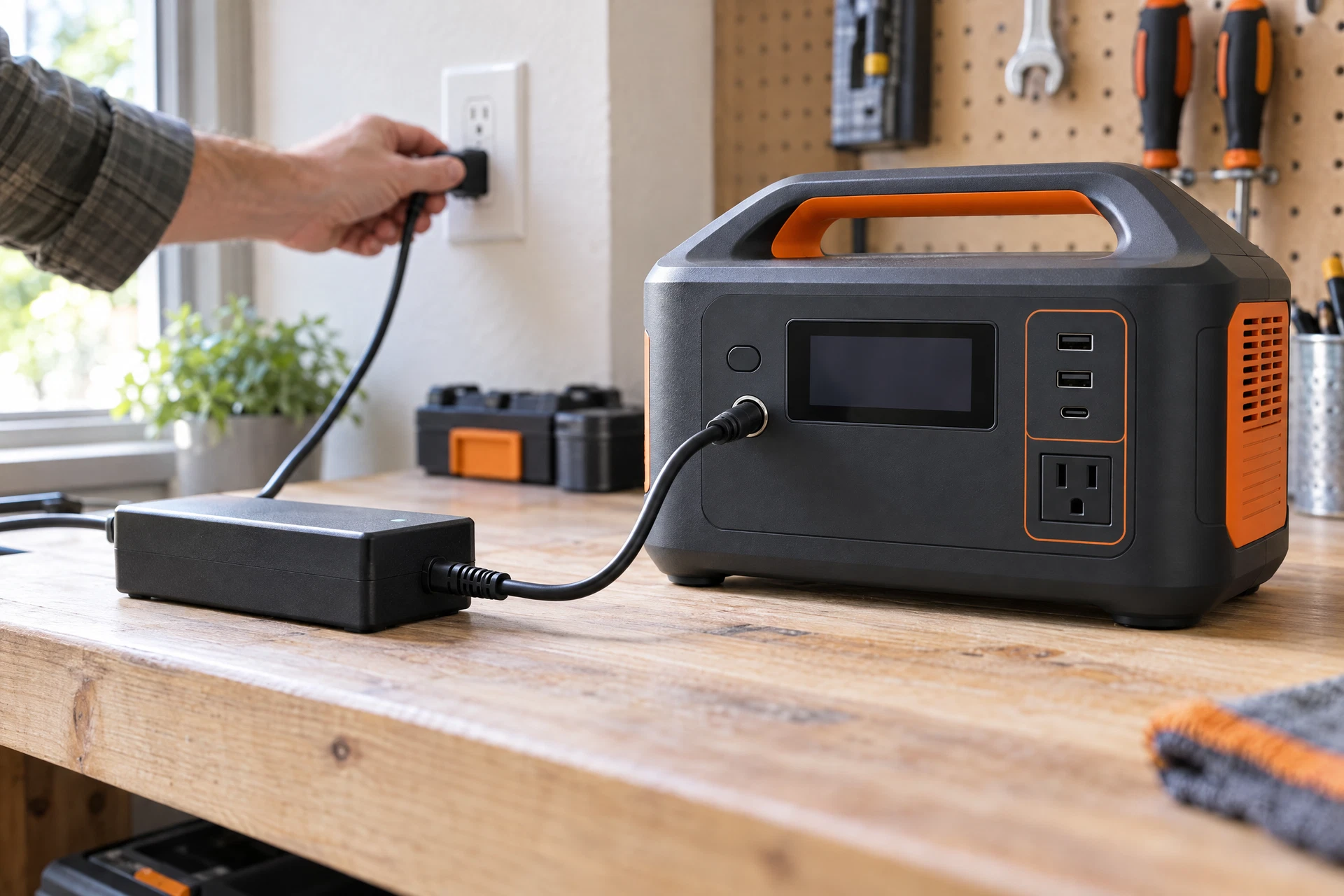
AC wall charging is a useful baseline because it removes weather and vehicle variables. Use only the manufacturer-specified charger, power brick, cord, and input port for the exact model. A connector that fits can still have the wrong electrical characteristics; do not substitute a laptop charger, higher-rated adapter, travel converter, or seemingly compatible cable.
With an intact, dry station, turn off unnecessary outputs. Check the charger and cord externally for cuts, crushed insulation, bent contacts, discoloration, loose strain relief, or a hot plug. Connect the specified setup as directed, observe input readings and messages, and avoid adding a power strip, extension cord, inverter, or generator unless the manual permits it.
If there is no input, look for a documented input-enable button, schedule, quiet mode, charge-rate selector, or separate port. If input appears but the percentage does not rise, remove pass-through loads and check for top-of-charge taper. If the approved AC setup still fails, stop repeating the test and save evidence. Reset only when the exact manual authorizes it and no safety warning exists.
What should you check for solar, vehicle, or USB-C input?
Solar input
Solar output varies with shade, cloud, angle, heat, panel wiring, connectors, and the station's input window. Confirm the exact model's supported source, connector, polarity, and limits. Use the approved panel and cable arrangement; do not combine panels, add adapters, or rewire unless documented. Make one stable-daylight observation with loads removed and record weather, shade, panel arrangement, input, and icon. A source near a limit may be rejected or protected. Never expose the station to rain, and stop for a hot, arcing, odorous, or damaged cable.
Vehicle input
Vehicle charging depends on the socket, ignition or accessory behavior, approved cable, and station design. Check both manuals rather than assuming every socket behaves alike. Keep the station ventilated and away from heat. Do not replace a fuse with a different rating, bypass socket protection, or change wiring. A weak source may explain slow input; it is not a reason to force more current. Stop for a hot, loose, discolored, or melted plug or socket.
USB-C input, where supported
USB-C is a connector shape, not proof that the port accepts charge. It may be input-capable, output-only, or shared. Confirm the exact port, manual, negotiated power profile, source, and cable. Use only the documented setup; do not stack adapters, use a random trigger cable, or defeat a negotiation limit. If USB-C is not listed as an input, use the specified AC, solar, or vehicle method.
How do temperature, BMS protection, and pass-through loads affect charging?
The BMS may reduce or stop charging for cell balance, low or high battery temperature, an input condition, an internal fault, or another limit. That is not a prompt to bypass protection: remove the external condition, wait in the manual's specified environment, and contact support if it persists.
Temperature thresholds are model-specific. Do not invent a universal range or cool a station with ice, water, compressed air, or a freezer. Move an intact unit away from direct sun, heaters, and blocked vents; let it change temperature naturally in a dry, ventilated place. Unusual heat, odor, swelling, smoke, or wetness is a stop-use event.
Pass-through or UPS-style operation can make charging look slow or stuck because AC, DC, USB, or refrigeration loads consume incoming power or change protection behavior. For a clean test, remove nonessential loads and turn off output ports normally. See the refrigerator guide for compressor-load planning and portable power for apartments for placement and ventilation. Never backfeed a wall outlet or make a building-wiring connection.
Can a cable or adapter prevent charging?
Yes. A cable may be wrong, internally damaged, loose, incompatible with a negotiated protocol, or attached to the wrong port. Inspect externally for cuts, crushed sections, bent pins, looseness, discoloration, melted plastic, contamination, or a connector that will not latch. Do not scrape contacts, spray liquid, or probe pins.
Use one manufacturer-approved cable and adapter at a time; remove splitters, extensions, third-party adapters, and travel converters while isolating the issue. Never splice a cable, change its pinout, bridge a fuse, or connect bare wires. If an approved replacement fails, contact support rather than making a homemade adapter.
Which checks are safe to do yourself?
Safe checks are external, reversible, and documented by the manufacturer. They include reading the label and manual, photographing the display, confirming the source and port, removing loads, checking accessible connector seating, moving an intact station to a dry and ventilated environment, and trying one approved input under normal conditions. You may compare a wall outlet with another ordinary outlet only if doing so is safe and permitted locally; do not dismantle electrical equipment.
Do not open the case, remove a battery cover, access cells, replace an internal fuse, clean inside a port, bypass the BMS, alter firmware, force a calibration discharge, or attempt cell balancing. Do not charge damaged equipment, use a charger with guessed specifications, connect a homemade solar harness, wire an output into a building, or backfeed a household circuit. If the manual's troubleshooting path ends, preserve the unit's state and contact the manufacturer or authorized service.
What should you send to support?
Support can diagnose a charging complaint much faster when it receives conditions rather than only “it does not charge.” Prepare an evidence packet:
- Exact model name, serial number if safe to read, hardware revision, firmware or app version, and purchase or warranty information.
- Photos or a short video of the display, input icon, percentage, fault code, and any visible cable or port issue. Do not handle a hot, wet, leaking, or smoking unit to take a closer photo.
- Input source and accessories: AC charger and cord, solar panel and cable, vehicle socket and cable, or USB-C source and cable. Include manufacturer and part number where available.
- Input watts, output watts, battery percentage, charge setting, connected loads, and whether pass-through or UPS mode was enabled.
- Timing and conditions: when charging started, when it slowed or stopped, ambient conditions, sunlight or shade, vehicle state, and whether the symptom repeats with all loads removed.
- Any drop, water exposure, unusual heat, odor, noise, swelling, leak, smoke, warning light, or recent firmware or accessory change.
Ask support to confirm the permitted input method, the documented meaning of the display behavior, and the safe handling or return process. Keep their instructions tied to the exact model. A generic forum answer or a video for a similar station is not evidence that a reset, charger, or cable is safe for yours.
When must you stop using the station?
These rules are more important than restoring power to an appliance. Official battery-safety guidance from the U.S. Fire Administration, U.S. Consumer Product Safety Commission, and National Fire Protection Association warns against continuing to use batteries showing signs such as unusual odor, excessive heat, swelling, smoke, or damage. Ready.gov's outage guidance also emphasizes planning and safe backup-power decisions; it does not make a damaged battery safe to operate. Use first-party support and local authorities for handling decisions.
Portable power station charging FAQs
Why does it charge from the wall but not solar?
Solar varies with sunlight, panel conditions, cables, polarity, and the model's input requirements. Confirm the documented setup, remove loads, and test once in stable daylight; do not add panels or adapters based on guessed values.
Can I leave an appliance plugged in while it charges?
Only if the exact model documents pass-through or UPS operation. The load can consume incoming power or alter protection behavior, so remove nonessential loads when diagnosing.
Should I drain it to zero to fix 99%?
No, not as a generic fix. Near-full readings may reflect tapering, a charge limit, balancing, or rounding. Follow the manual and contact support; never force a deep discharge of a hot or damaged unit.
Is a different charger safe if its plug fits?
No. Plug fit does not prove compatible voltage, current, polarity, wiring, protocol, or thermal behavior. Use the specified or explicitly approved charger.
How were the sources reviewed?
Source-update note: The official public safety and outage-planning sources below were checked for this update on October 22, 2026. Product limits, connector behavior, charge times, temperature thresholds, and reset steps remain model-specific and can change with firmware or revision; confirm them in the current manual.
This guide uses first-party sources for general safety context, not as a substitute for product documentation. Make the safest external check you can, preserve evidence, and stop when the unit or source is not clearly safe.
Answers to common follow-ups
Questions readers ask
Why does my power station charge from the wall but not from solar?
Solar input depends on sunlight, panel conditions, approved cables, connector polarity, and the exact model's input requirements. Confirm the documented setup, remove loads, and test once in stable daylight; do not add panels or adapters based on guessed voltage or current values.
Can I leave an appliance plugged in while the station charges?
Only when the exact model documents pass-through or UPS operation for that use. The load can consume incoming power or change protection behavior, so remove nonessential loads when diagnosing charging.
Should I drain the battery to zero to fix a 99% reading?
Not as a generic fix. A near-full reading may reflect tapering, a charge limit, balancing, or display rounding. Follow the exact manual and contact support if documented completion does not occur; never force a deep discharge of a hot or damaged unit.
Is a different charger safe if its plug fits?
No. A matching plug does not prove compatible voltage, current, polarity, wiring, protocol, or thermal behavior. Use the specified or explicitly approved charger and ask first-party support about replacements.
Sources & update note
How this guide was checked
Source update note: checked on October 22, 2026 against the listed first-party manuals, manufacturer support materials and official public-safety resources. Product features, firmware, warnings and safety limits can change; confirm your exact model manual before acting.
Keep going